
Creating a new game
Organizer creates a new game and sets the core details.
Set your clubs. Create or join games. Get real approvals and consent.
Organizer creates a new game and sets the core details.
Player finds an existing game and asks to join.
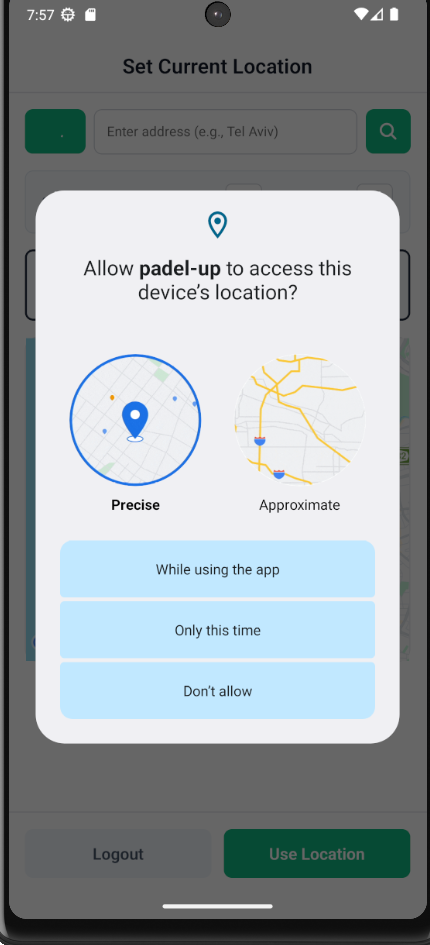
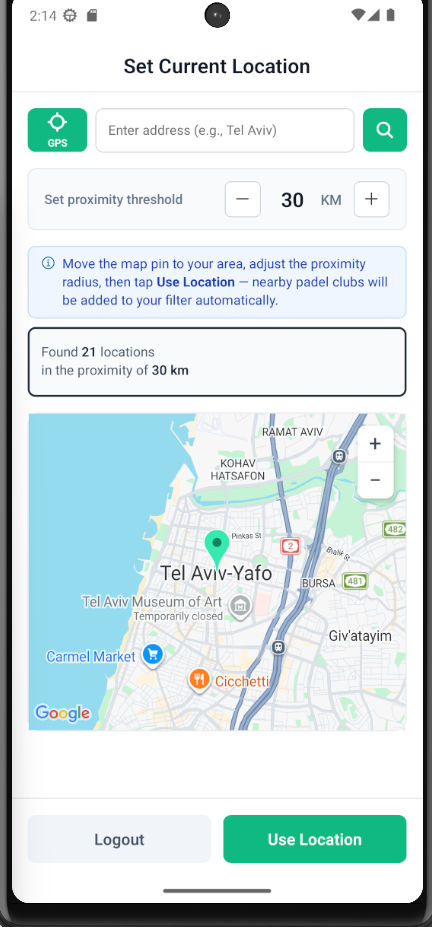
Player signs in, sets location, and chooses clubs.
Organizer receives and reviews a generated recommendation.
The game closes after the player list is confirmed.
From court booking to a closed game, Padel-Up keeps the organizer in control while every player receives clear requests, approvals, and consent notifications.
The first player acts as the organizer and books the court outside Padel-Up, using the club or booking app to choose the location, time, court, and duration.
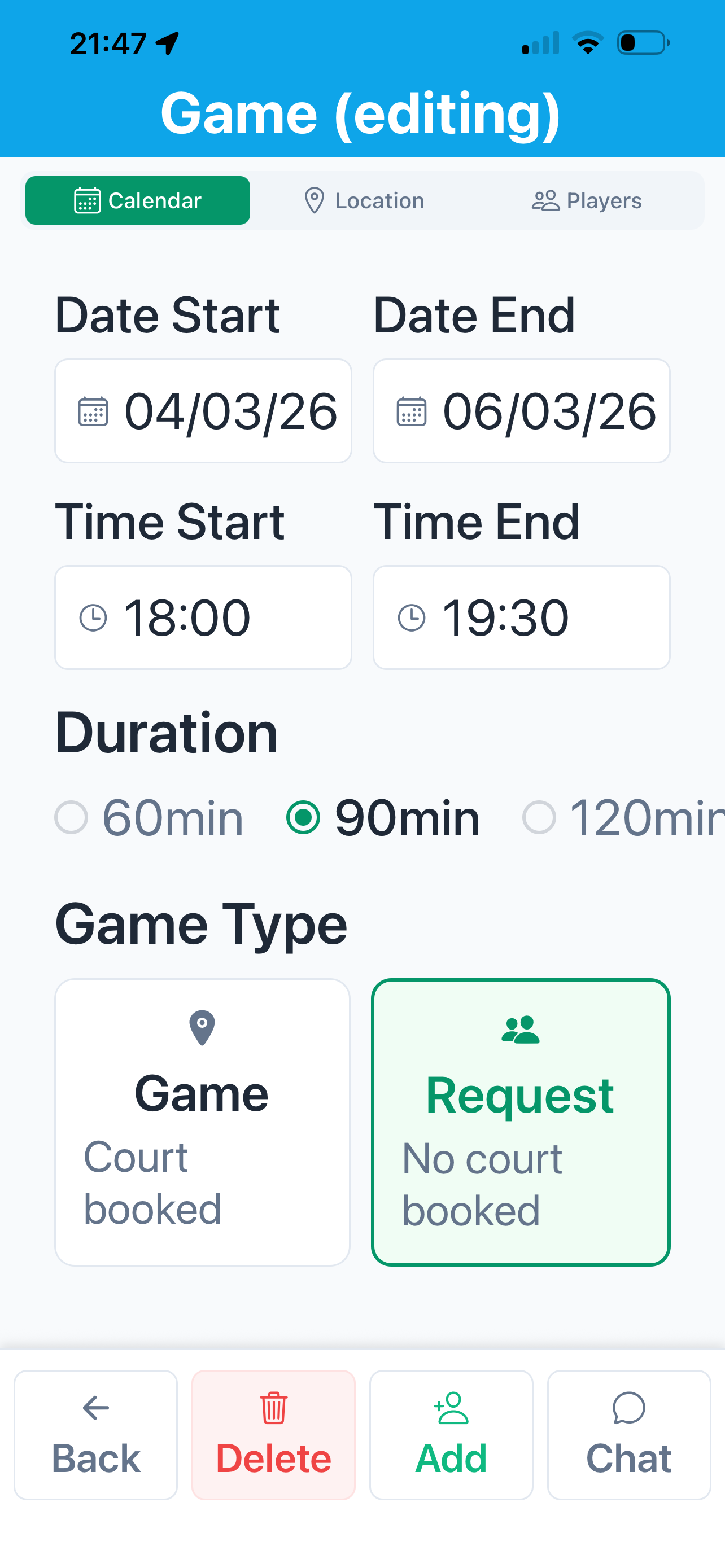
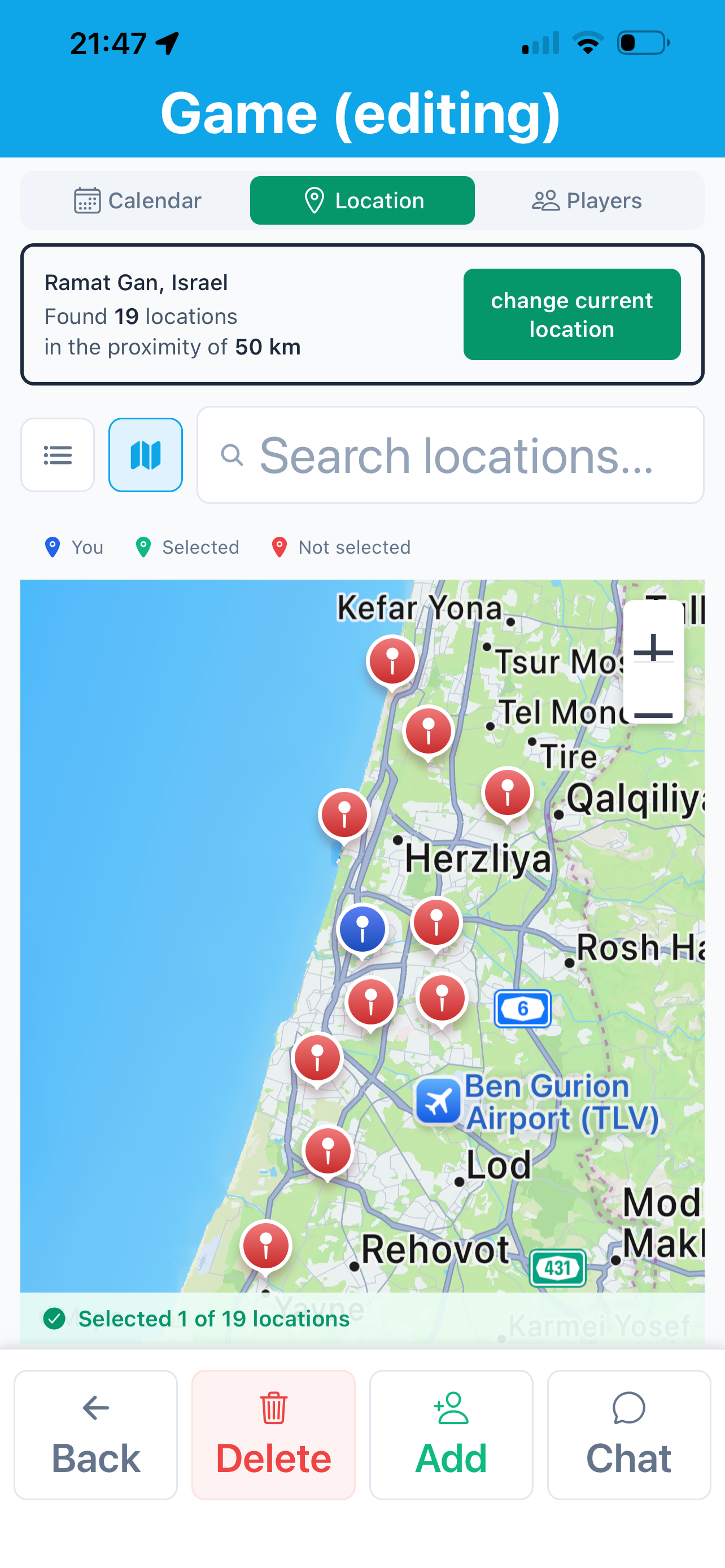
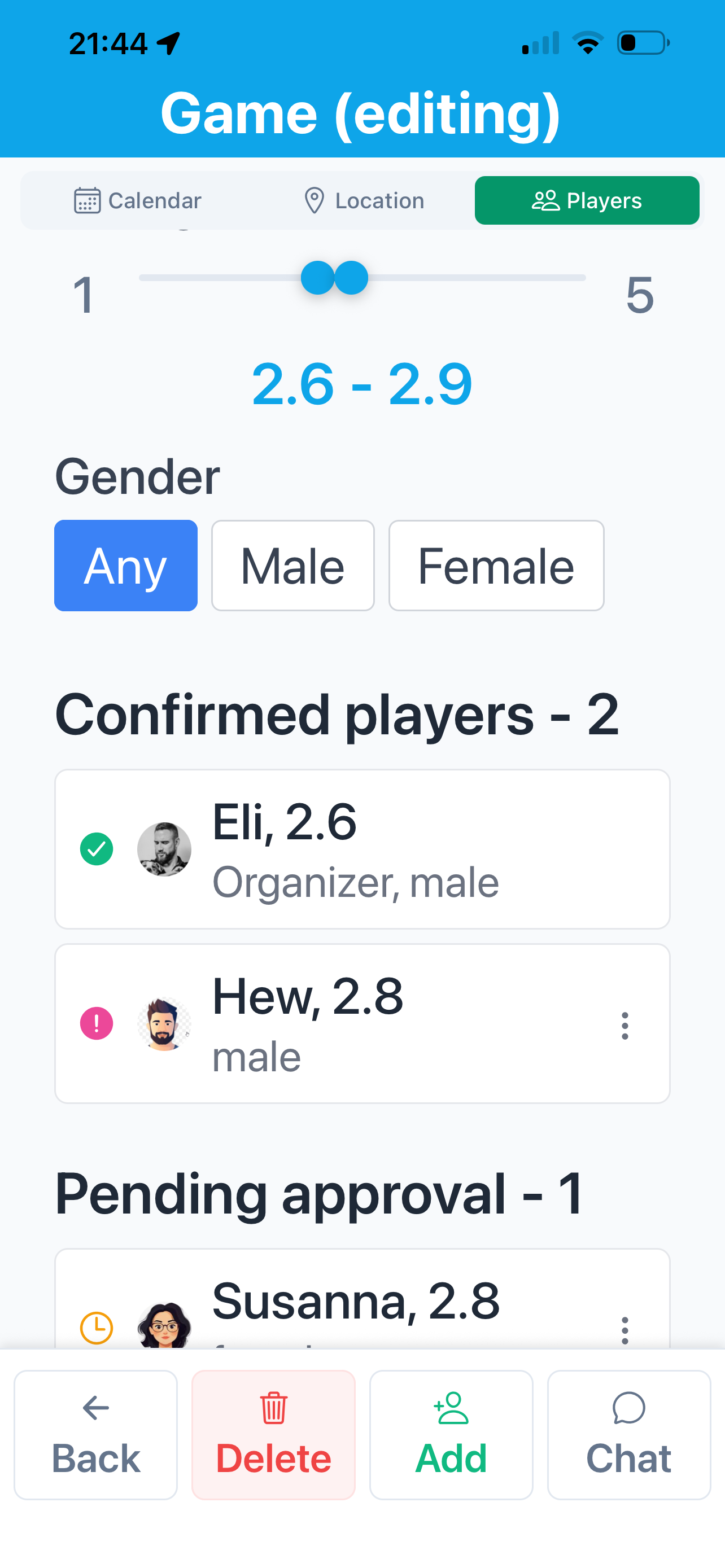
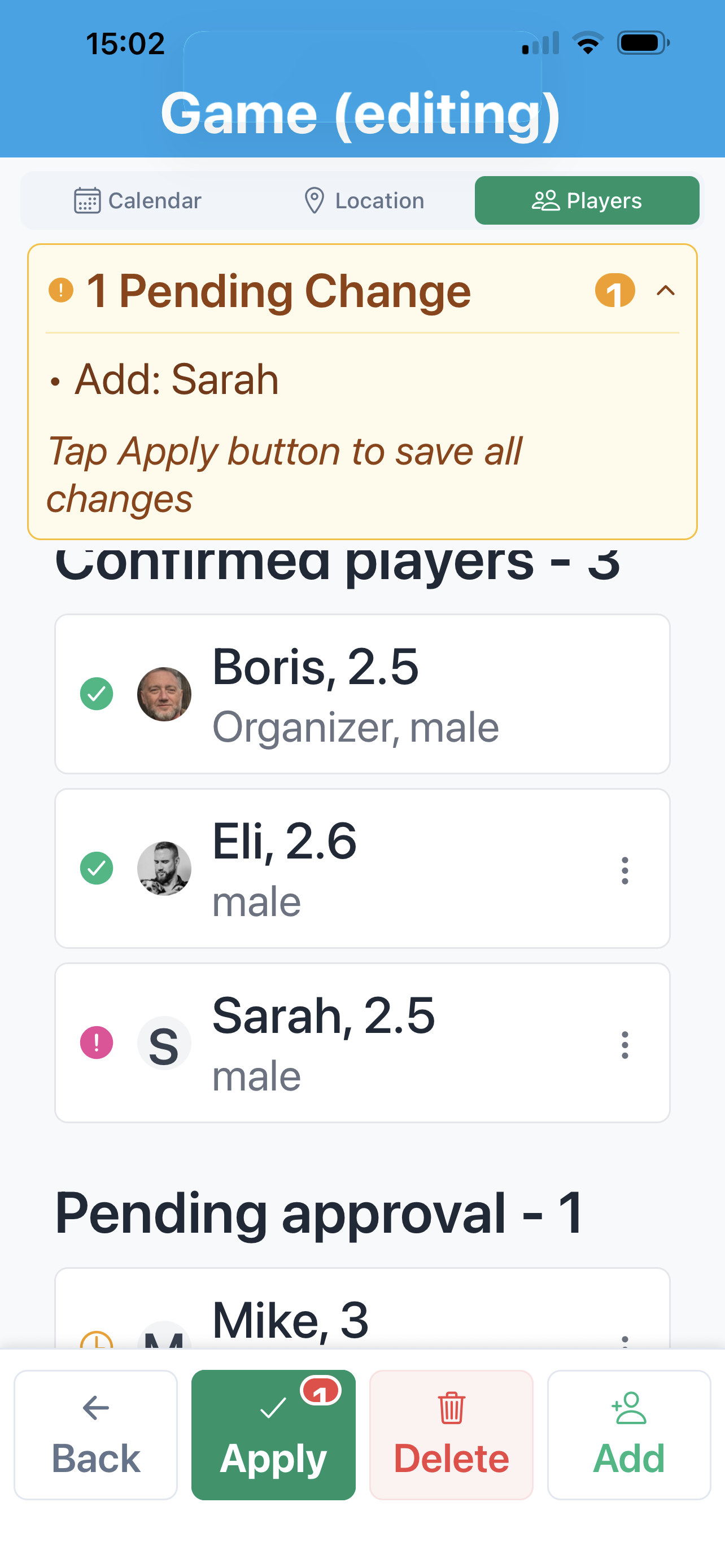
The organizer defines the game details: date, time, duration, club location, desired player gender and rating, and optional invited players. Padel-Up notifies all current game players when the game is created or updated.
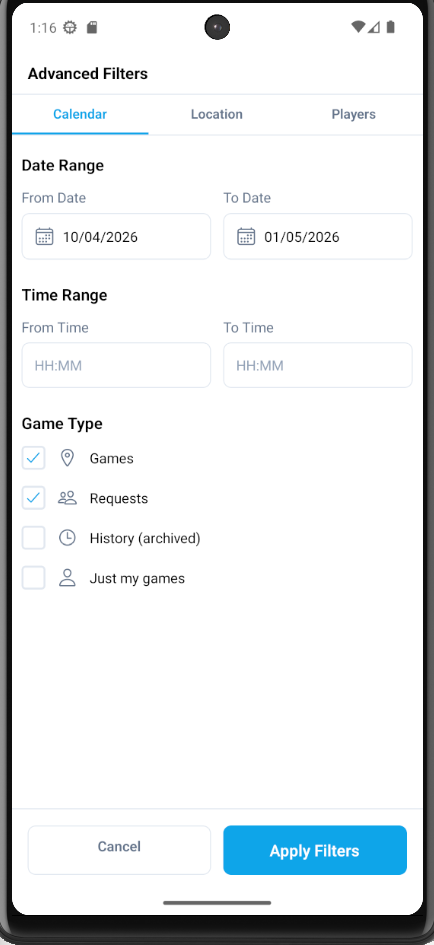
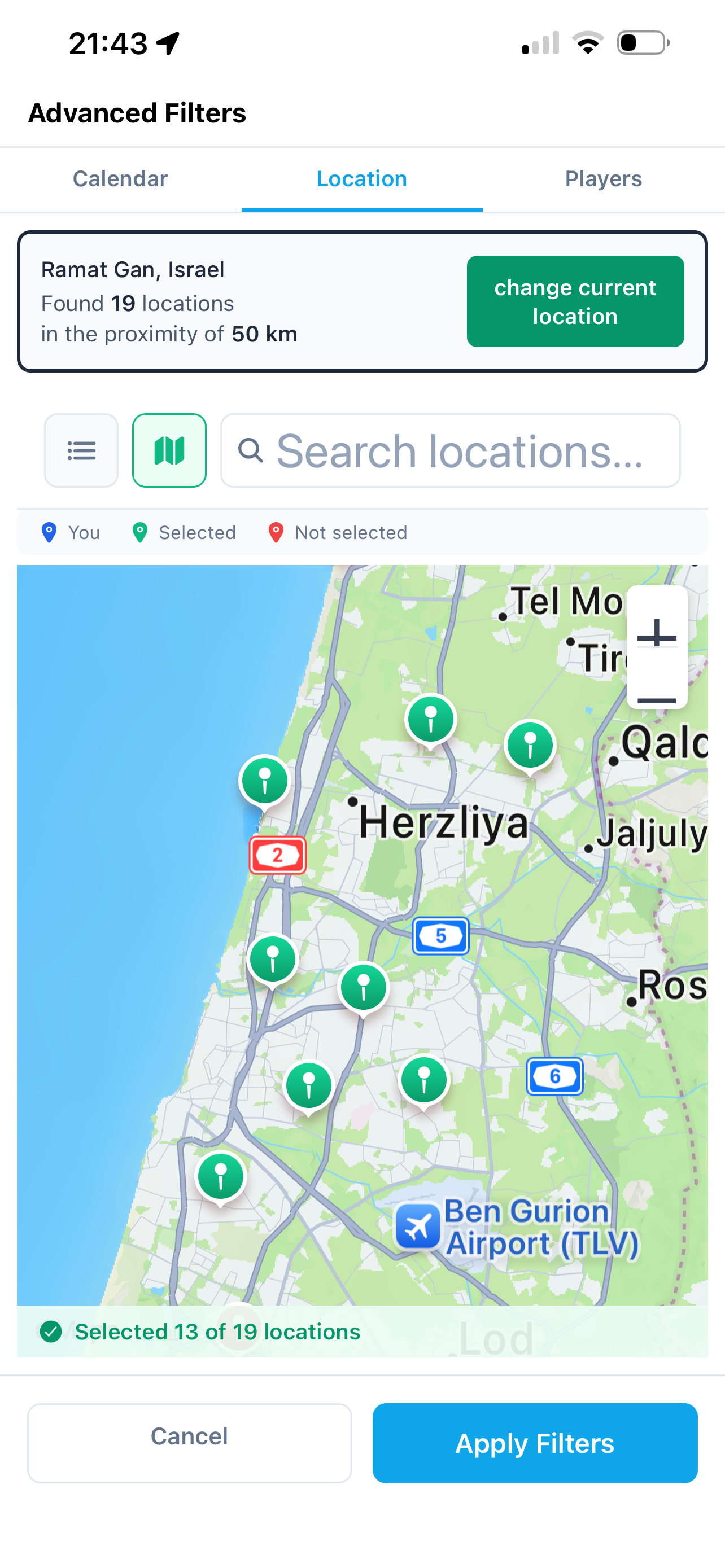
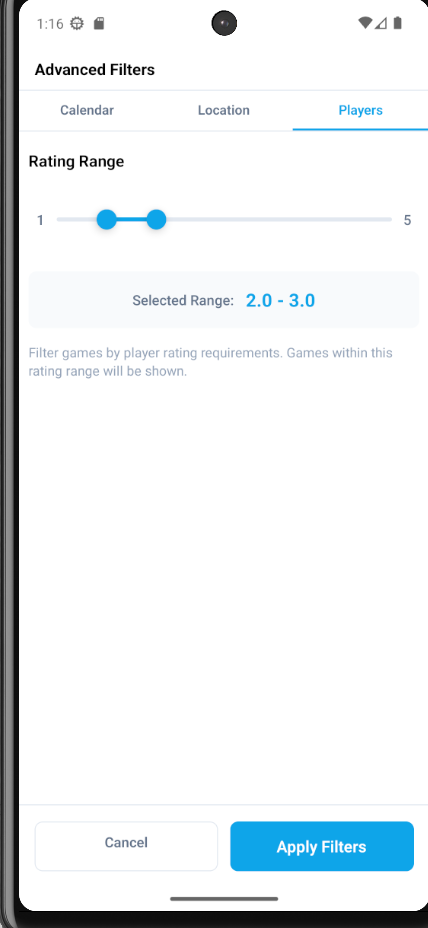
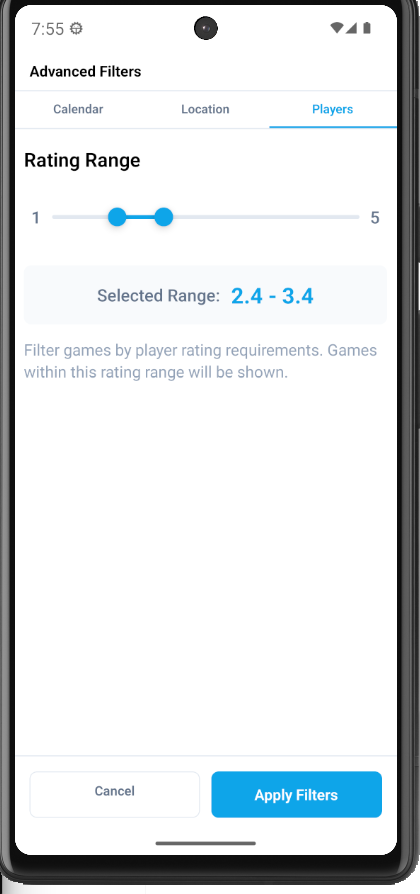
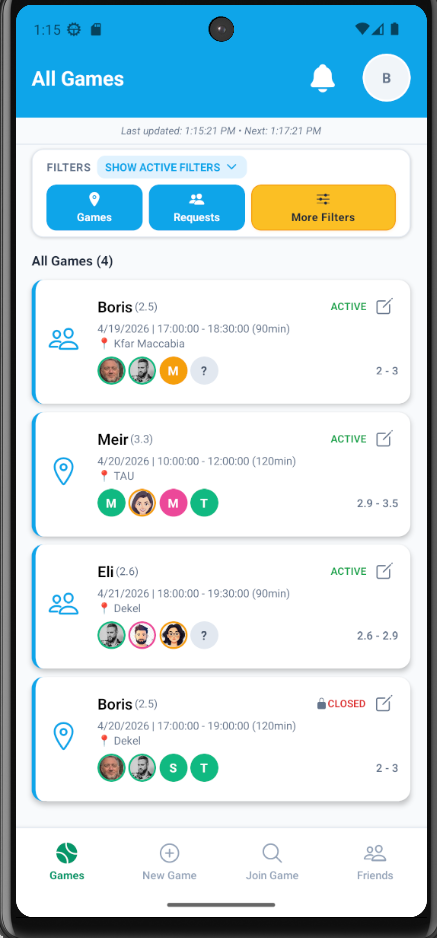
A player searches for open games by filtering locations, rating ranges, and calendar availability. They review the matching games, choose one, and send a join request.
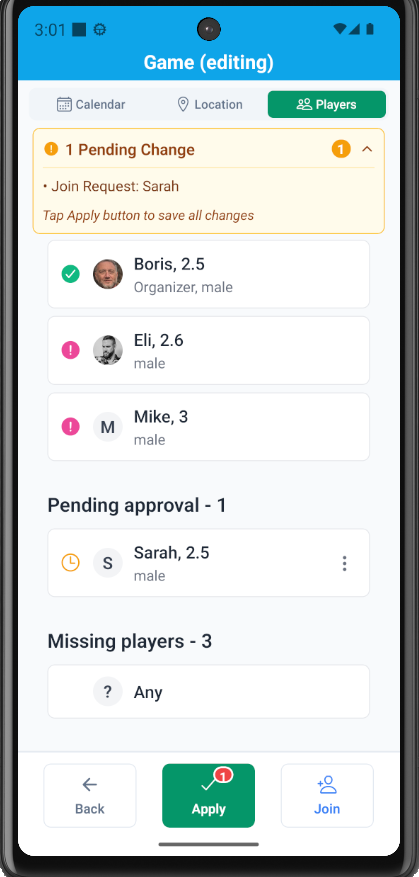
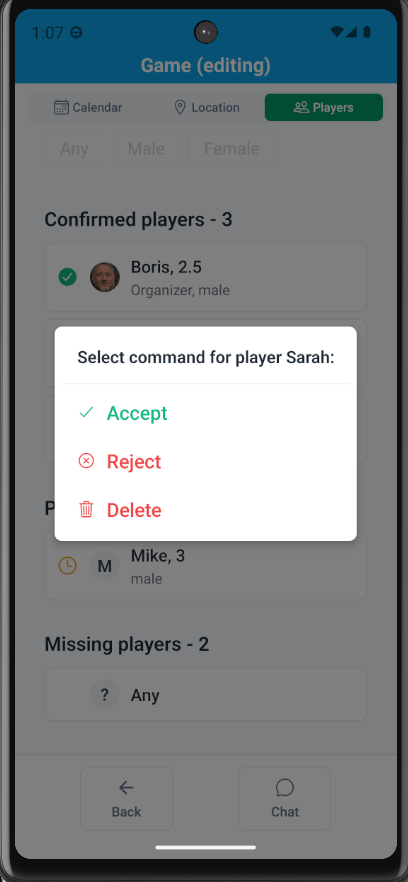
The organizer receives a join request notification for the missing player slot. The link opens the pending approvals list, where the organizer can approve or reject the request. In both cases, the player is notified.
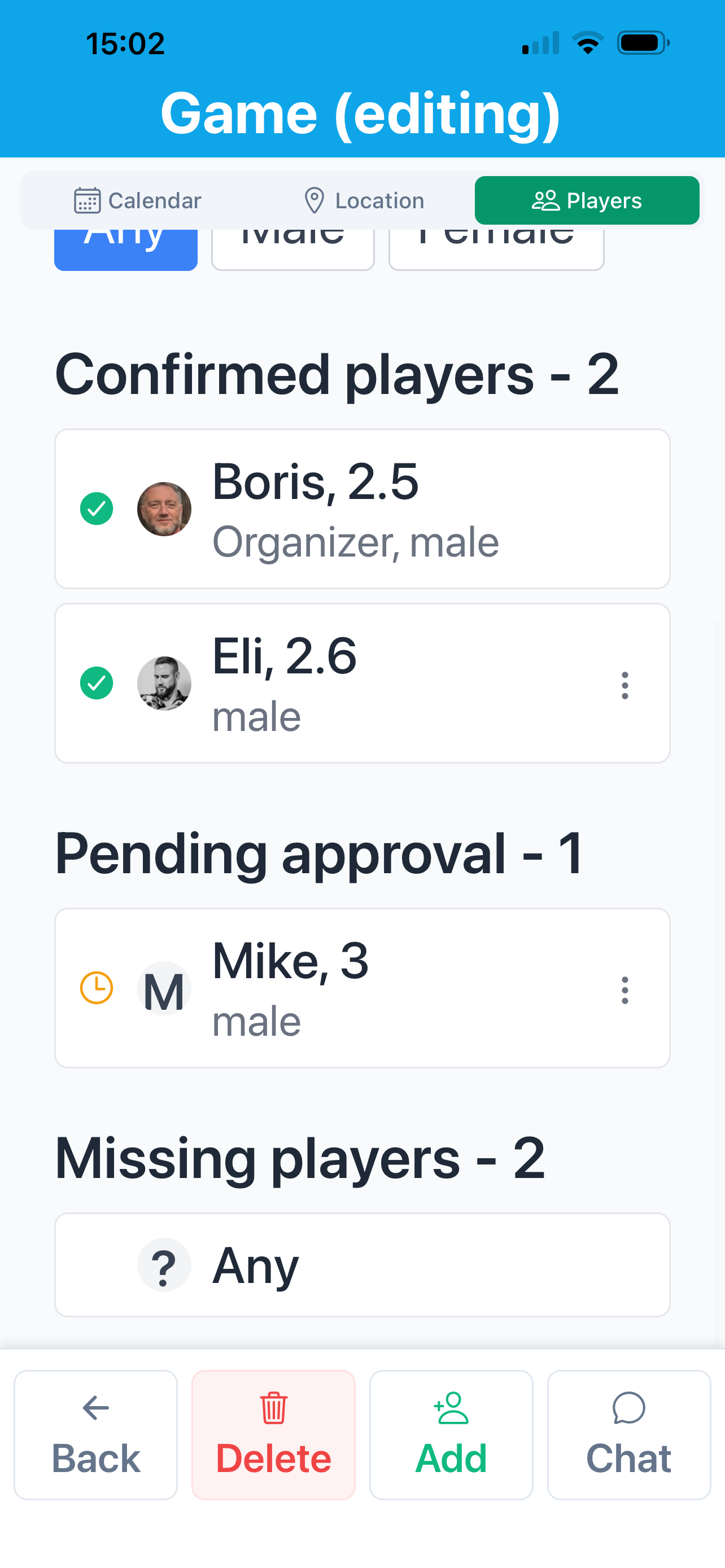
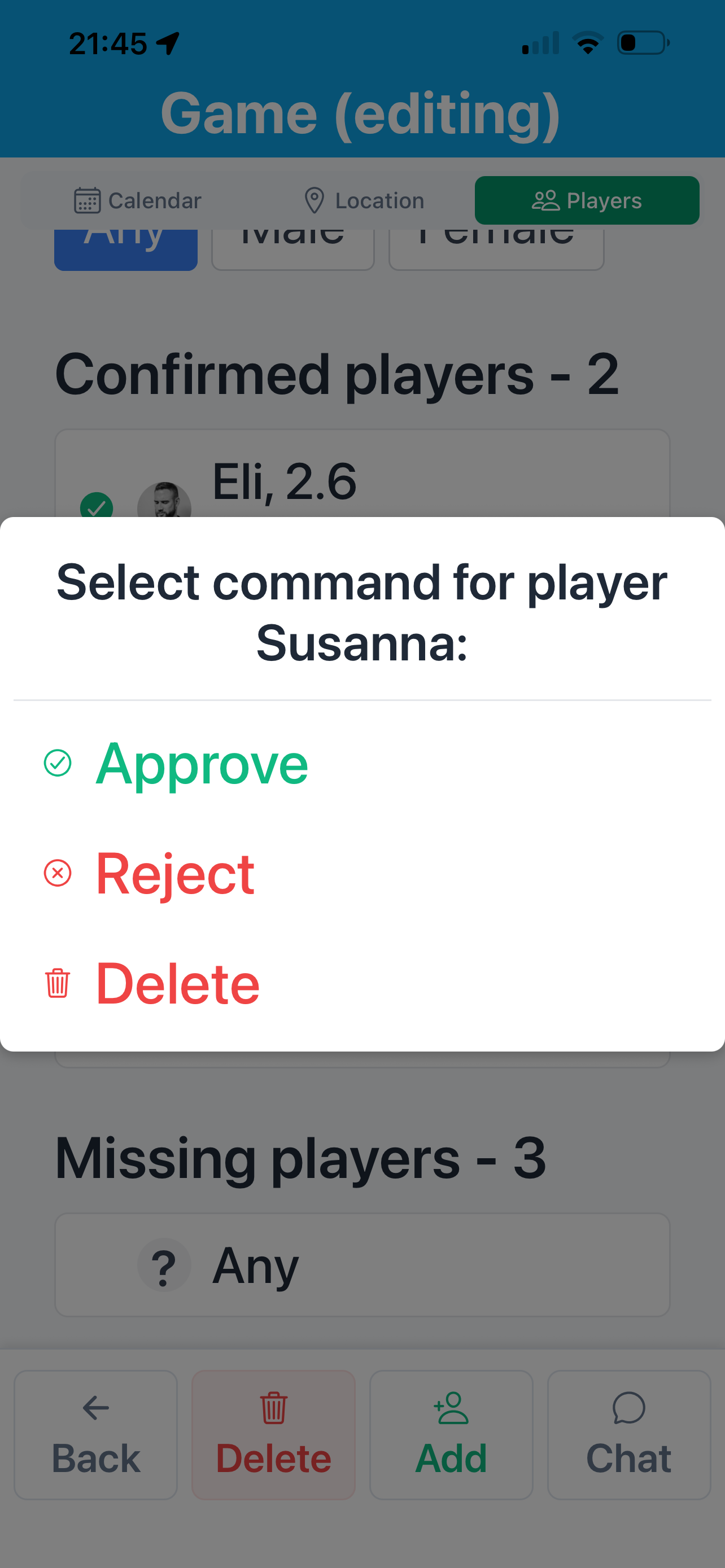
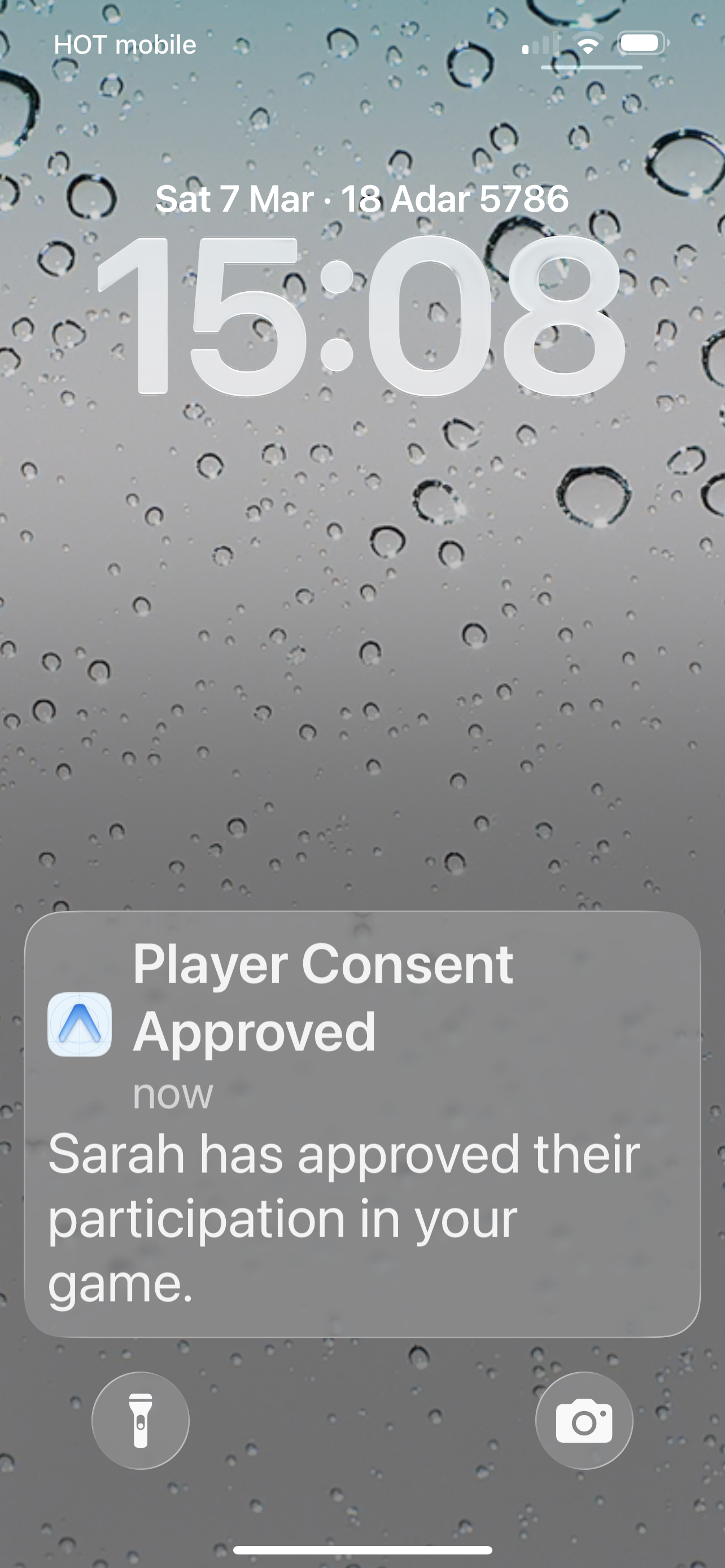
If the organizer adds a player directly, that player receives a consent-pending notification. The link opens the waiting-for-consent list, where the player can approve or reject the invitation. The organizer is notified either way.
When the fourth player is approved, the game closes automatically and every confirmed player receives a game-closed message. Any remaining candidates are removed from the closed game, and their other active requests are deactivated and archived.